Last updated · 5 July 2026
How TagMyRun works
TagMyRun guides you through four simple steps, shown along the left of the app.
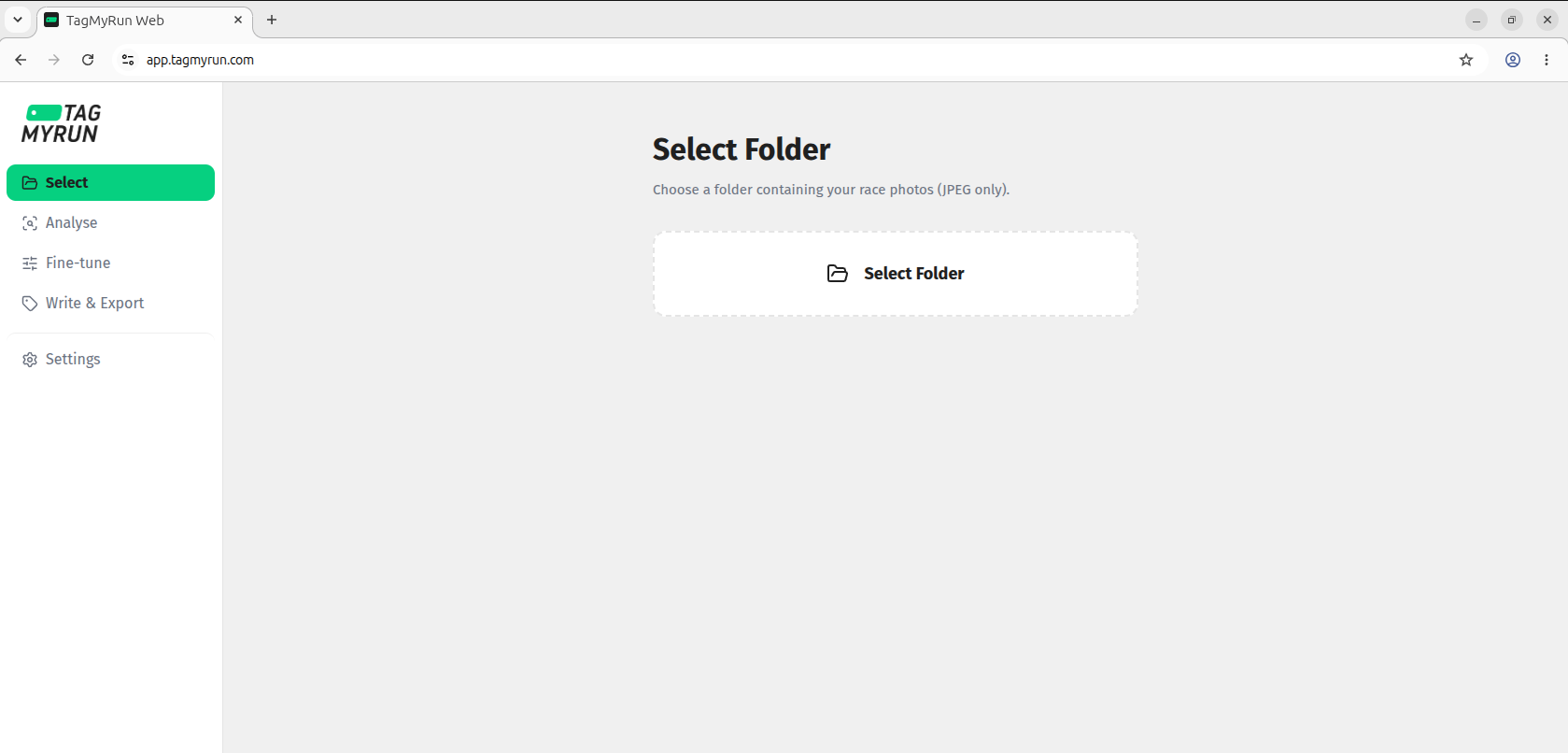
1. Select
Choose the folder of race photos on your computer.
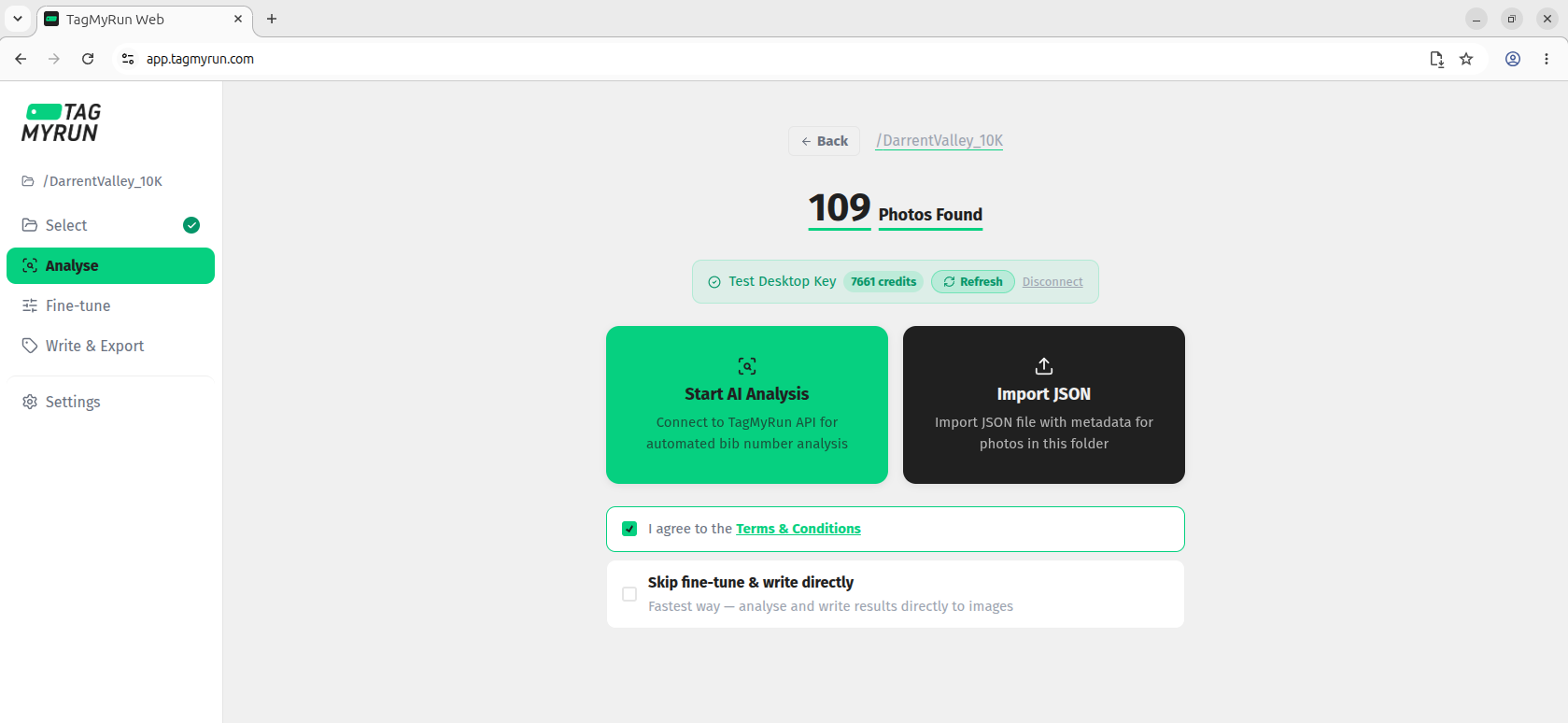
2. Analyse
Connect your access key, accept the terms, and click Start AI Analysis. TagMyRun reads the bib numbers in each photo.
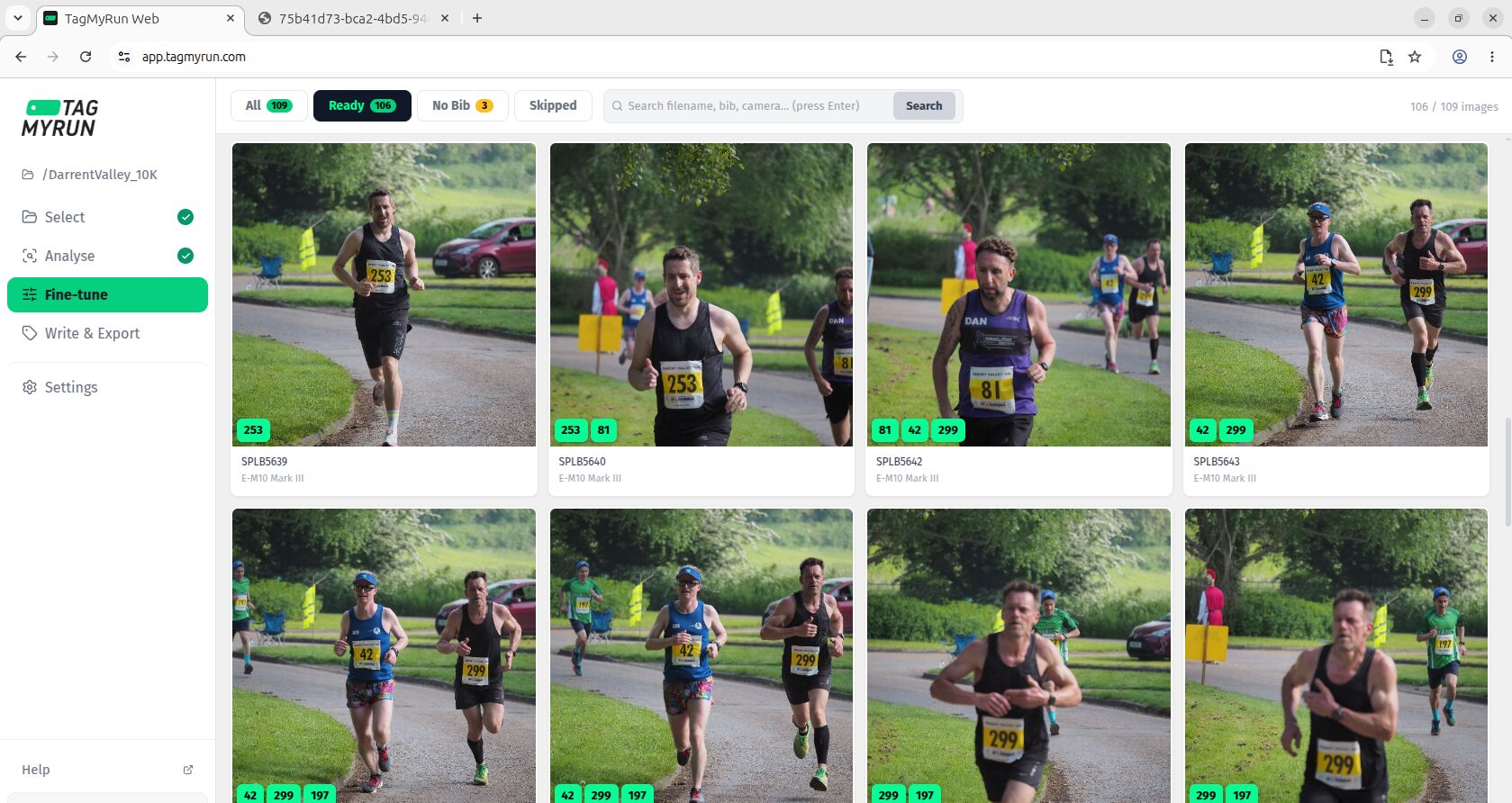
3. Fine-tune
Review the detected bib numbers and correct anything that needs it. Filter by ready, no-bib, or search.
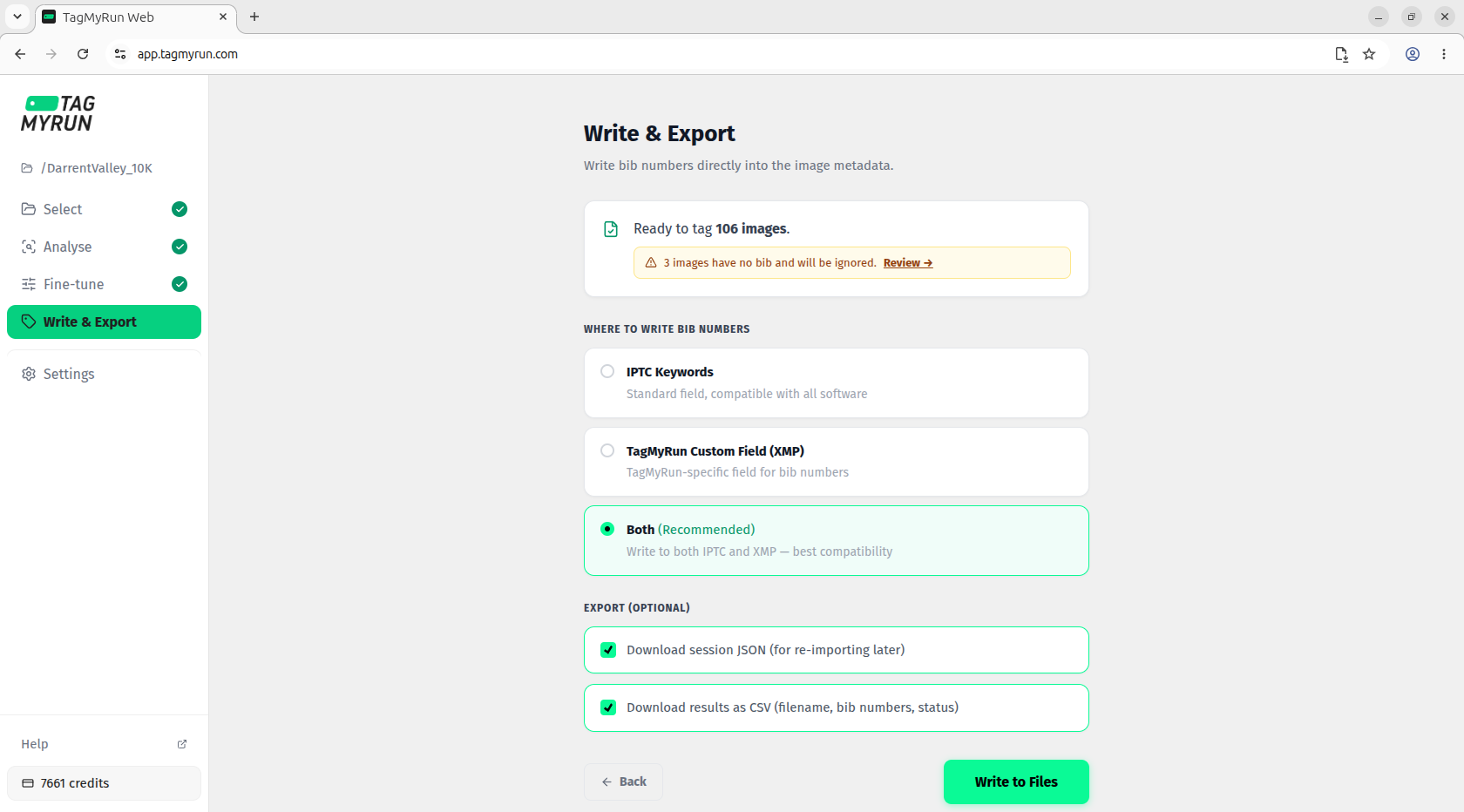
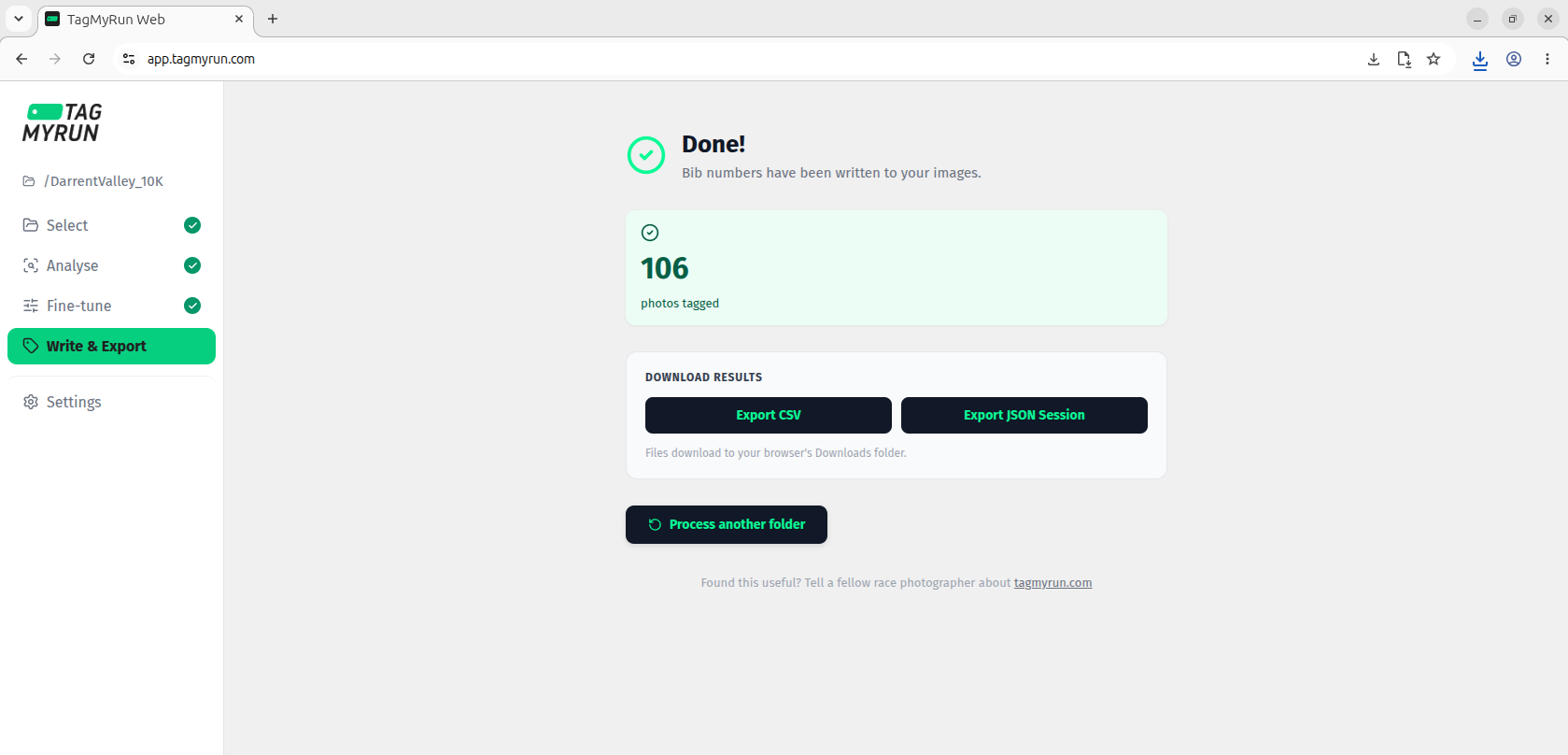
4. Write & Export
Write the bib numbers into your photos’ metadata (IPTC and/or XMP), and optionally export a CSV or session file.
Done
Your photos are now tagged and searchable by bib number. You can process another folder anytime.
Getting started
TagMyRun reads bib numbers from your race photos and writes them into each photo’s metadata, so your library becomes searchable by race number. There is no account to create — you just use a simple access key.
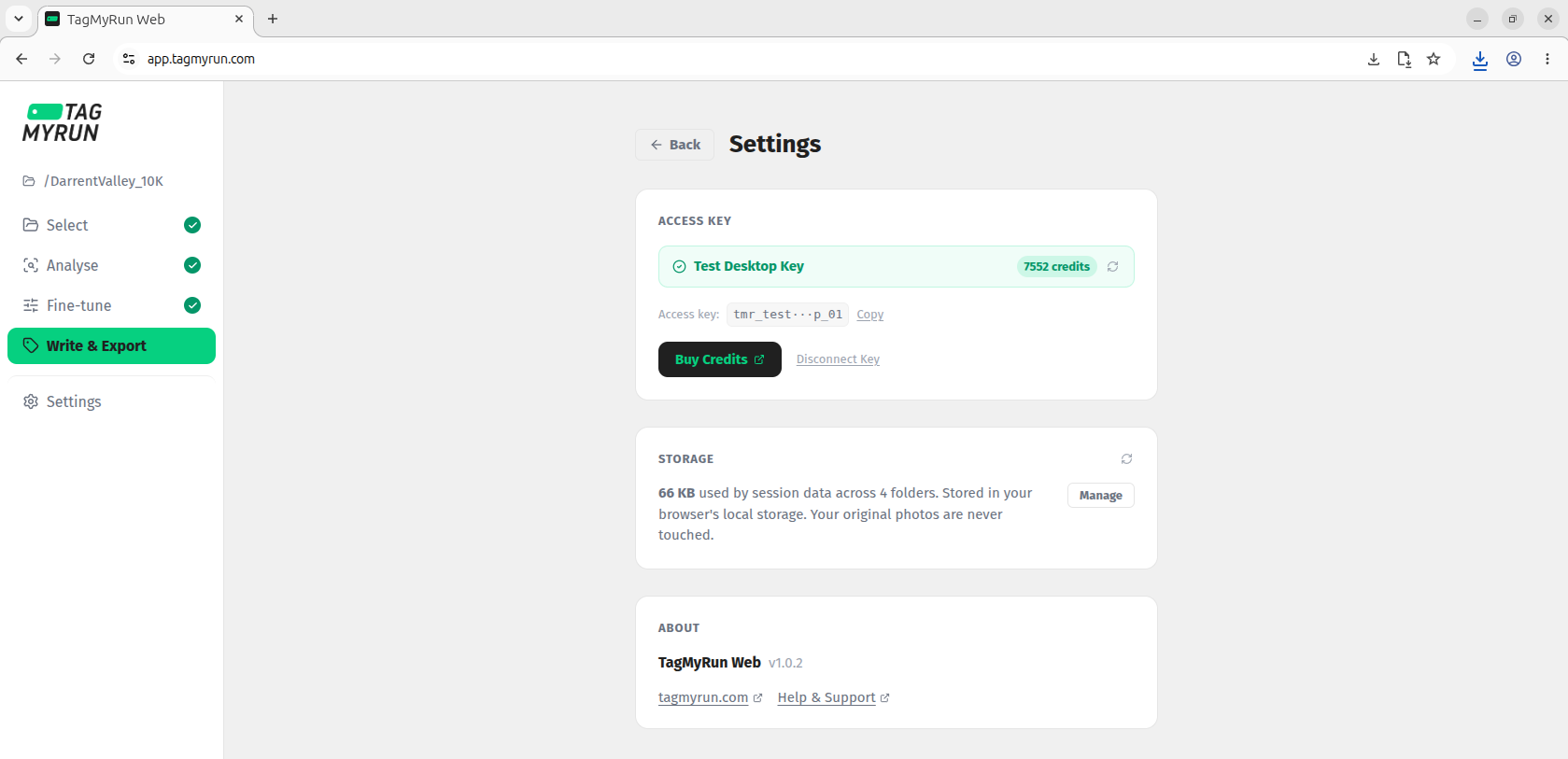
- Open the app and go to Settings.
- Enter your email and click Get Free Key — we’ll email you an access key with 500 free credits.
- Paste the key into the app and click Connect.
How credits work
- 1 credit = 1 photo analysed.
- You are only charged for photos that are successfully analysed — not for ones the AI couldn’t process.
- Your free key comes with 500 credits. You can buy more anytime.
- To start analysing a folder, you need at least as many credits as there are photos in it.
Analysing your photos
- Choose the folder of photos you want to tag.
- Connect your access key and accept the terms.
- Click Start AI Analysis. Results appear as each batch completes.
- Review the detected bib numbers, then write them into your photos.
Web app (app.tagmyrun.com): please use Google Chrome — reading a local folder isn’t supported in Firefox or Safari. Also, keep the browser tab open while an analysis is running; closing it or navigating away stops the run.
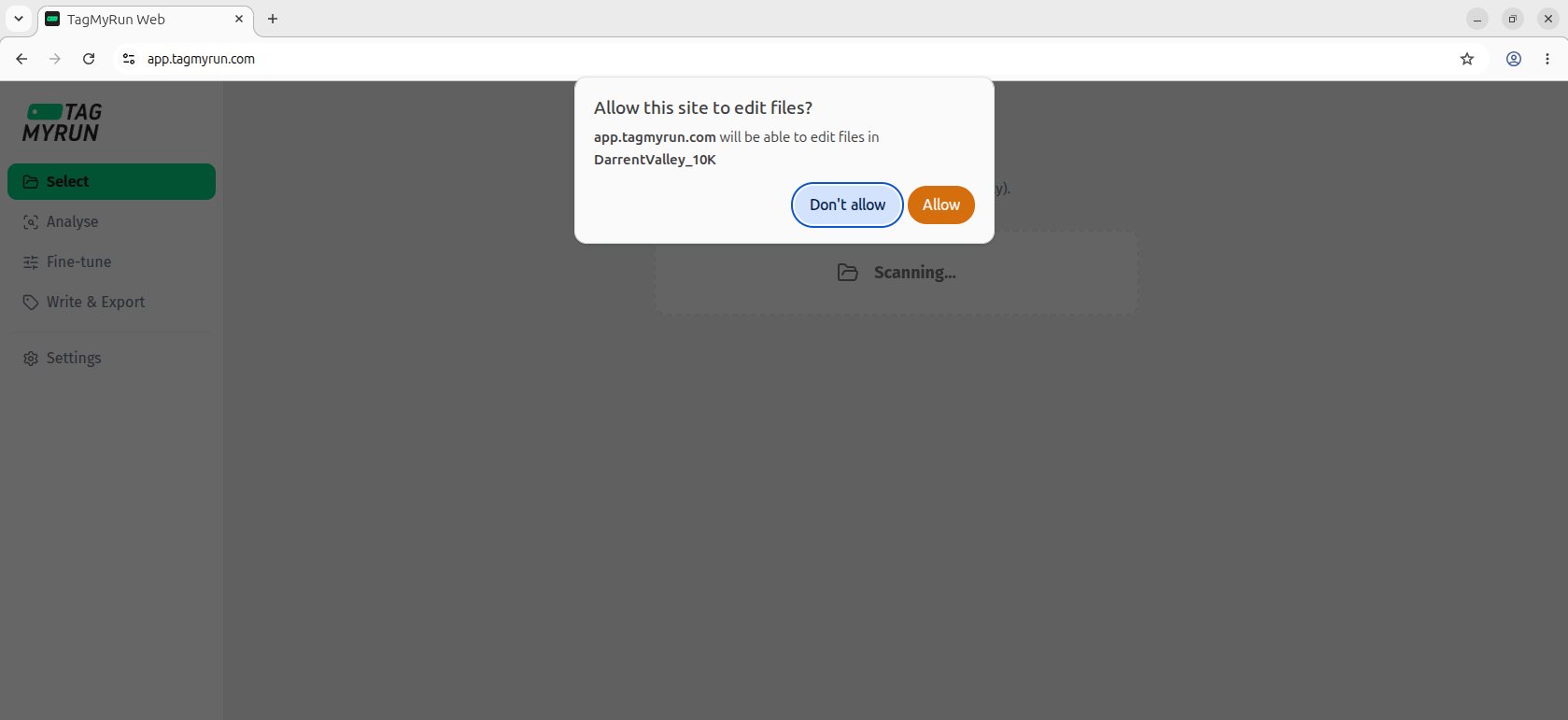
When you pick a folder, Chrome asks permission to access it — click Allow.
Desktop app: same steps, and it works offline once your photos are analysed. Your original photos are never changed until you choose to write results.
If you run out of credits during a run
If your credits run out partway through, TagMyRun keeps the results it has already produced and shows them — nothing is thrown away. You’ll see a note that the analysis stopped early.
To finish the rest:
- Go to Settings and top up your credits.
- Press Refresh next to your credit balance.
- Run the analysis again to tag the remaining photos.
To avoid this, make sure your credit balance is at least the number of photos before you start — the app will keep the Start AI Analysis button disabled until it is.
Buying more credits
In Settings, click Buy Credits. After payment, your credits are added automatically — press Refresh if you don’t see the new balance straight away.
Troubleshooting
- “We couldn’t find this key.” — Double-check the key is copied and pasted exactly, with no extra spaces.
- The web app won’t open my folder. — Use Google Chrome; local-folder access isn’t available in Firefox or Safari.
- “Analysis stopped early.” — You ran out of credits. Top up, press Refresh, and re-run to tag the rest (your completed results are kept).
- Did it change my photos? — No. Your originals are untouched until you choose to write results.
Still need help?
Email us at [email protected] and we’ll get back to you.